
Introduction
Salpace Lite is a modern, responsive HubSpot theme designed to help businesses create professional websites with ease. With customizable modules, flexible styling options, and user-friendly theme settings, you can build engaging pages, maintain consistent branding, and update website content directly through the HubSpot page editor—without writing code.
Available Page Templates :
- Home: Create an engaging homepage to showcase your brand, highlight key services, and guide visitors toward important actions.
- About Us: Introduce your company, share your story, and highlight your mission and values.
- Contact Us: Help visitors connect with your business through contact information, forms, and call-to-action elements.
- Services: Present your services in an organized layout with descriptions, images, and links to individual service pages.
- Service Detail: Provide detailed information about individual services, including features, benefits, and CTA buttons.
- Customer Review: Showcase customer feedback and testimonials to build trust and credibility.
- FAQ: Answer frequently asked questions in a clear, organized layout.
- Resources: Share useful resources and informational content to help visitors explore relevant topics.
- Blog Listing Page: Display blog posts in an organized layout to help visitors discover articles and updates.
- Blog Details Page: Present individual blog articles with structured content and a reader-friendly layout.
Key Features of the Salpace Lite Theme :
- 10 ready-to-use page templates
- Fully responsive design for desktop, tablet, and mobile
- Customizable modules and page layouts
- Flexible theme settings for colors and typography
- User-friendly HubSpot page editor
- Reusable content sections and modules
- Consistent branding across website pages
- Customizable text, images, backgrounds, and CTAs
- Easy content management without coding
- Modern, clean, and professional design
Benefits of Salpace Lite
- Easy Customization: Modify available modules and theme settings to suit your brand.
- Faster Page Building: Create professional pages using the included templates.
- Responsive Experience: Deliver a consistent experience across different devices.
- Brand Consistency: Maintain a unified design throughout your website.
- Simple Content Management: Update website content directly in the HubSpot editor.
- Business-Focused Design: Present services, customer reviews, resources, and blog content effectively.
Salpace Lite provides a simple and flexible foundation for building professional HubSpot websites with essential page templates and easy customization options.
Theme inside pages
-
Home
-
About Us
-
Contact Us
-
Services
-
Service Detail
-
Customer Review
-
FAQ
-
Resources
-
Blog listing page
-
Blog details page
Getting Started with Salpace Lite
Step 1: Install the Theme
- Log in to your HubSpot account.
- Open the Marketplace from the top navigation bar and go to the Templates (themes) marketplace.
- Search for Salpace Lite and open the theme page.
- Click Install (or Buy for a paid theme) in the top right corner, then confirm.
Once installed, the theme appears in your Design Manager under the theme folder.
Step 2: Customize Your Brand Styles
Open the Salpace Lite theme settings to customize your logo, brand colors, typography, buttons, and spacing. Apply your preferred styles to create a consistent look across your website.
Step 3: Create Your First Page
Create a new website page in HubSpot and select Salpace Lite as your theme. Choose from the available templates, including Home, About Us, Contact Us, Services, and other included page layouts.
Step 4: Customize Page Content
Use the HubSpot drag-and-drop editor to add and arrange available modules. Update headings, text, images, links, buttons, and styling options to match your content and branding.
Step 5: Set Up Your Blog
Configure the Salpace Lite blog listing and blog details templates with your HubSpot blog. Customize the blog layout and content presentation to provide a consistent reading experience.
Step 6: Preview and Publish
Preview your pages on desktop, tablet, and mobile devices to ensure everything looks and works as expected. Review your content, links, and layouts before publishing your website.
Overview of Theme Settings
Salpace Lite Theme Settings allow you to manage your website's visual appearance from one central location. Customize your brand colors, typography, buttons, and other available design options to maintain a consistent look across your website without editing each module individually.
-
Accessing Theme Settings
- Log in to your HubSpot account.
- Go to Content > Website Pages (or Landing Pages).
- Open any page built with Salpace Lite in the page editor.
-
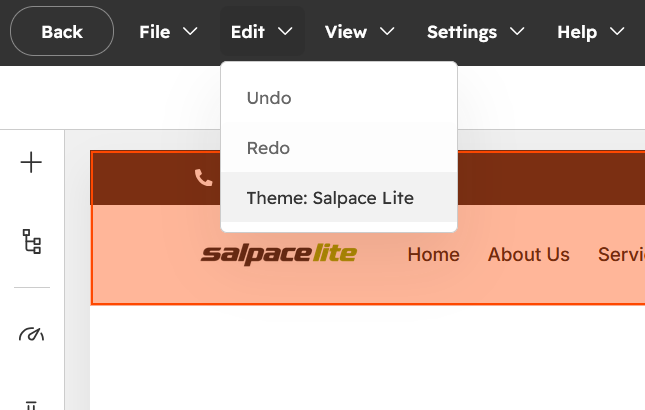
Select Edit > Theme settings to access the available customization options.
- What You Can Customize
Colors
Set your primary, secondary and accent colors, along with background and text colors used across the site.Typography
Choose fonts for headings and body text, and set sizes, weights and line heights for each heading level.Spacing
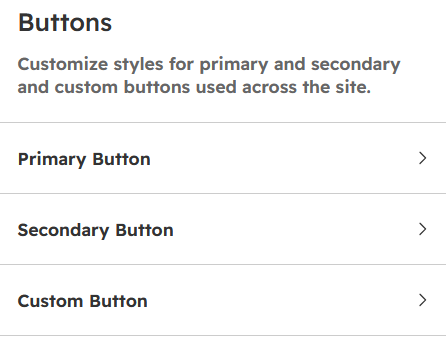
Adjust the default padding and margins between sections, so pages feel balanced on both desktop and mobile.Buttons
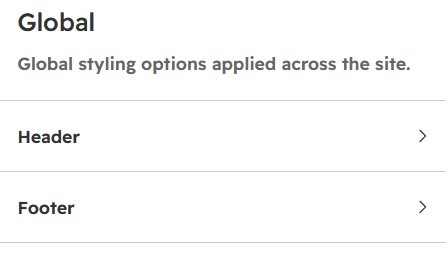
Style primary, secondary and custom buttons, including color, border radius, padding and hover effects.Header and Footer
Update your logo, navigation menu, footer links and social media icons. Changes appear on every page automatically.Forms
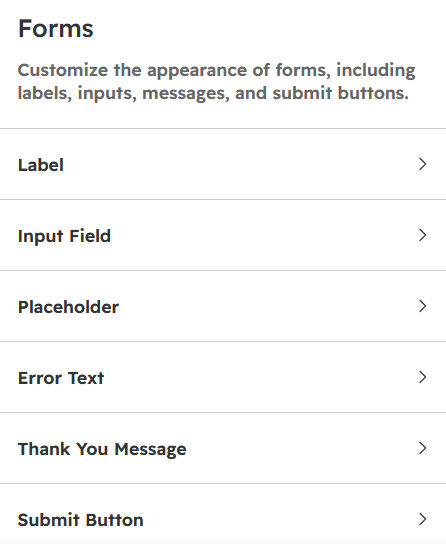
Style form fields, labels and submit buttons to match your brand. -
Tips for Best Results
Start with Theme Settings: Set your brand colors, fonts, and button styles before creating pages to maintain a consistent design throughout your website.
Customize Modules When Needed: Use individual module settings to adjust specific sections when you need a different layout or appearance.
Preview on Mobile: After updating fonts, spacing, or layouts, check your pages on mobile, tablet, and desktop to ensure a smooth and consistent user experience before publishing.
Theme Settings :
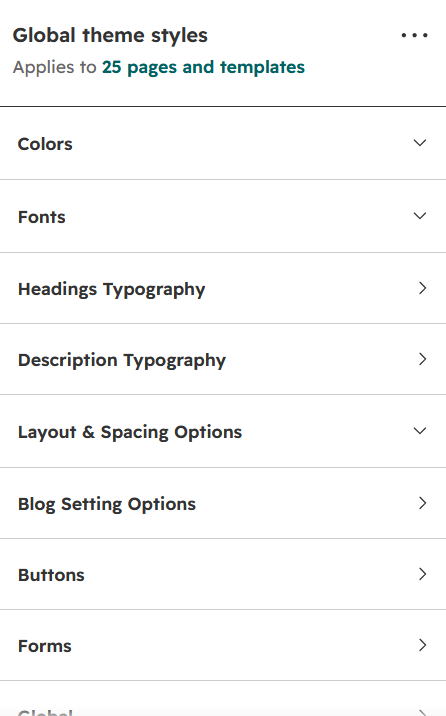
Global color :
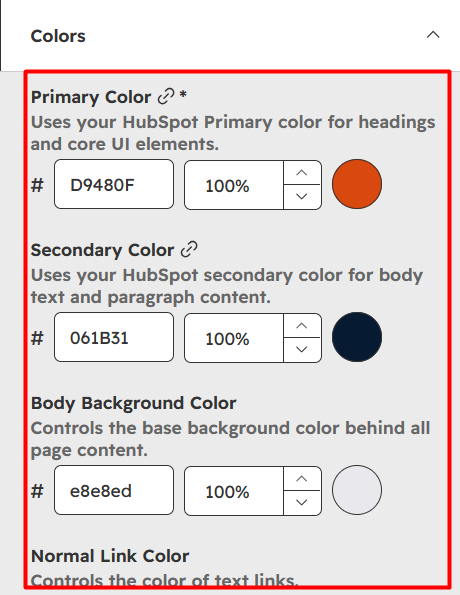
Fonts :
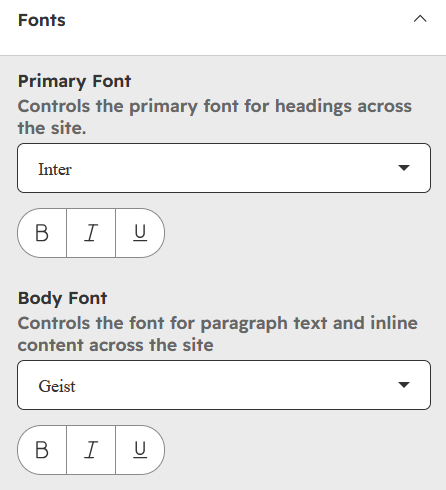
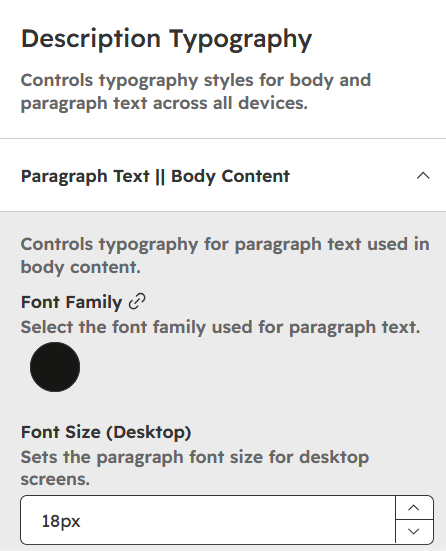
Description Typography :
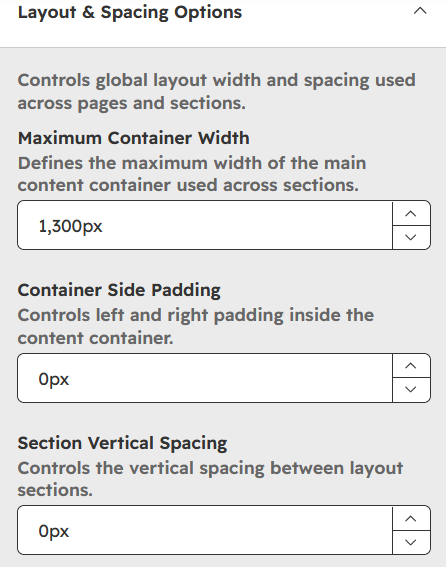
Layout & Spacing Options :
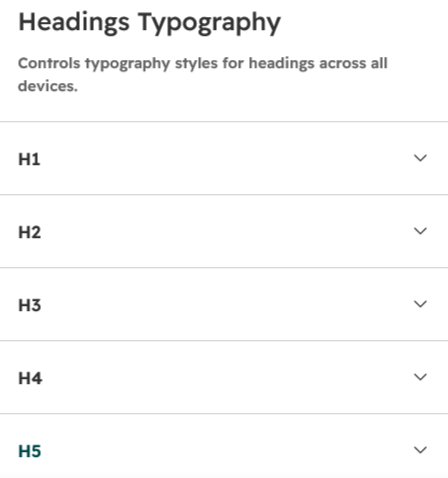
Headings Typography :
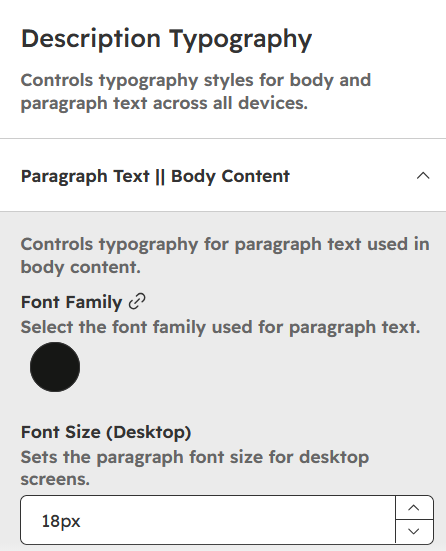
Description Typography :
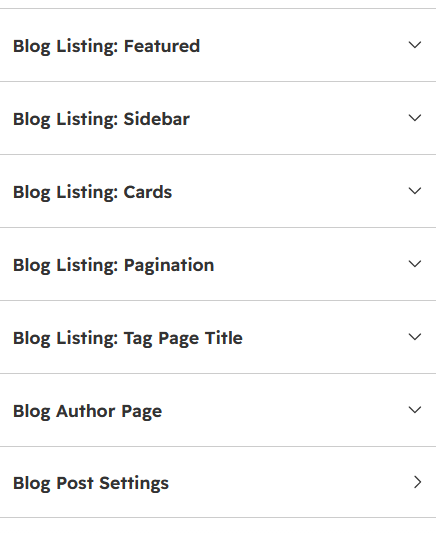
Blog Setting Options :
Buttons :
Global :
Forms :
Create a Page Using Salpace Lite
-
In HubSpot, go to Content > Website Pages and click Create.
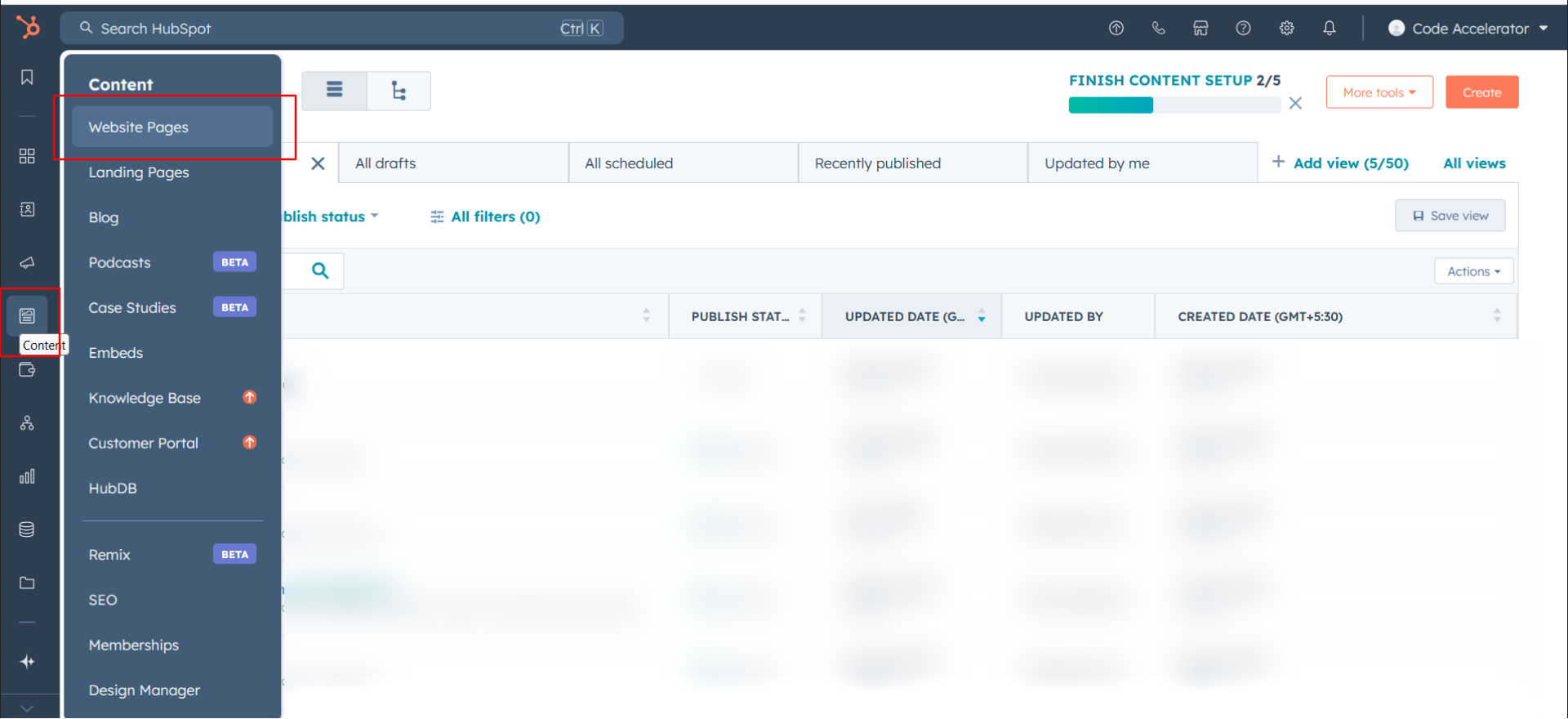
- Click to Create and add page name.
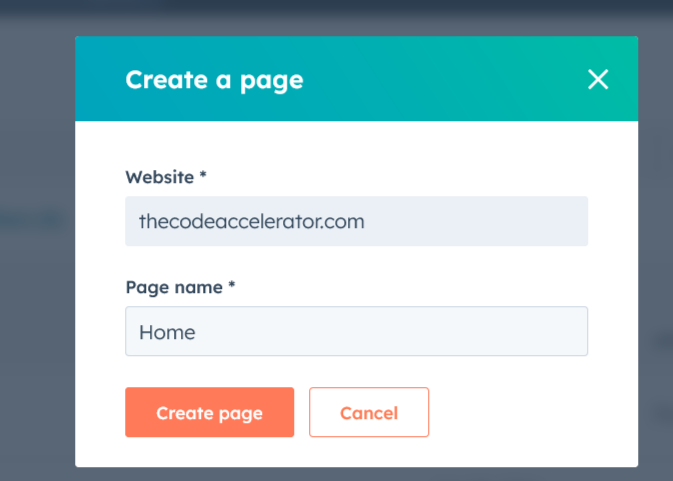
-
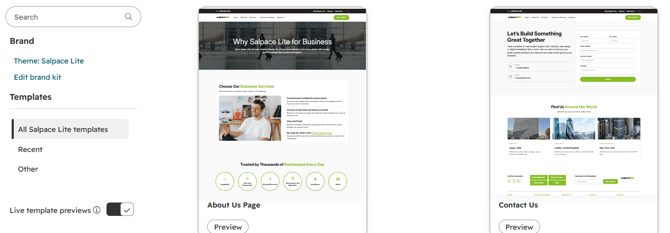
Choose a template from your newly uploaded theme by selecting the Salpace Lite and select Home Template.
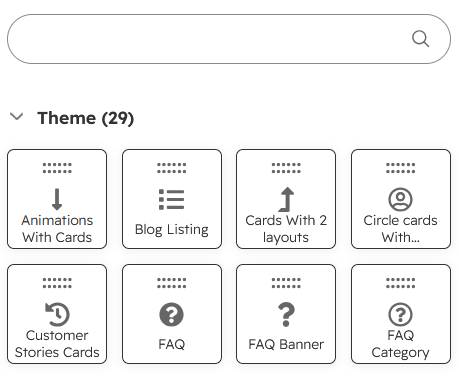
- Once the page opens in the editor, drag and drop modules or sections from the left sidebar onto the page to add content.
- In the page editor, click the Settings tab at the top.
Under Internal page name, enter a name to help your team find the page in HubSpot. This name is not shown to visitors.
Under Page title, enter the title that will appear in the browser tab and in search results.
Under Page URL, check or edit the page's web address.
Under Meta description, add a short summary of the page for search engines.
Click Publish in the top right corner.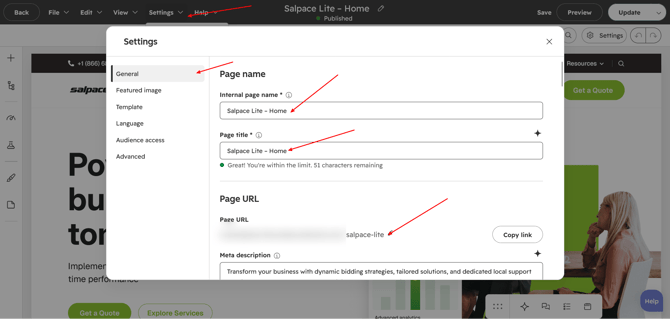
Contact
Have a question about Salpace Lite? Whether you need help customizing a section, fixing an issue or getting the most out of the theme's features, our support team is here to help.
How to Reach Us:
-
Please email us: shubham@thecodeaccelerator.com
-
Book a free consultation: https://thecodeaccelerator.com/book-a-meeting-with-shubham
-
Discover more: https://thecodeaccelerator.com