
The Podcast Episode Gallery Module is a powerful solution designed to help businesses, creators, and brands showcase podcast content in an engaging and organized format. It simplifies the process of displaying, managing, and promoting podcast episodes through interactive gallery layouts, built-in audio playback, and video popup support. Whether you're sharing interviews, educational content, or industry insights, this module delivers a seamless listening and viewing experience for your audience. Here’s a comprehensive overview of its key features and benefits:
Key Features of the Podcast Episode Gallery Module :
-
User-Friendly Interface:
-
Intuitive Design: Easily navigate through the module with a clean and straightforward layout.
-
Drag-and-Drop Functionality: Simplify the process of adding images, text.
-
-
Fully Responsive:
-
Mobile Optimization: Automatically adjusts content for optimal viewing on all devices, including desktops, tablets, and smartphones.
-
No Coding Required: Enjoy a seamless experience without the need for additional coding or styling adjustments.
-
-
Customization Options:
-
Styling Controls: Modify colors, typography, margins, paddings, box shadows, and borders directly from the styles tab to match your branding.
-
Template Variety: Choose from a selection of pre-designed templates or create your own unique layout.
-
-
Lead Generation Focused :
Collect visitor information efficiently to grow your email list and marketing database.
- Custom Episode Cards :
Display episode artwork, title, description, duration, and publication date in fully customizable cards.
How to Set Up the Podcast Episode Gallery Module in HubSpot :
In the main dashboard, navigate to the ‘Content’ tab and choose either ‘Website’ or ‘Landing Pages’ depending on where you want to add the service section.
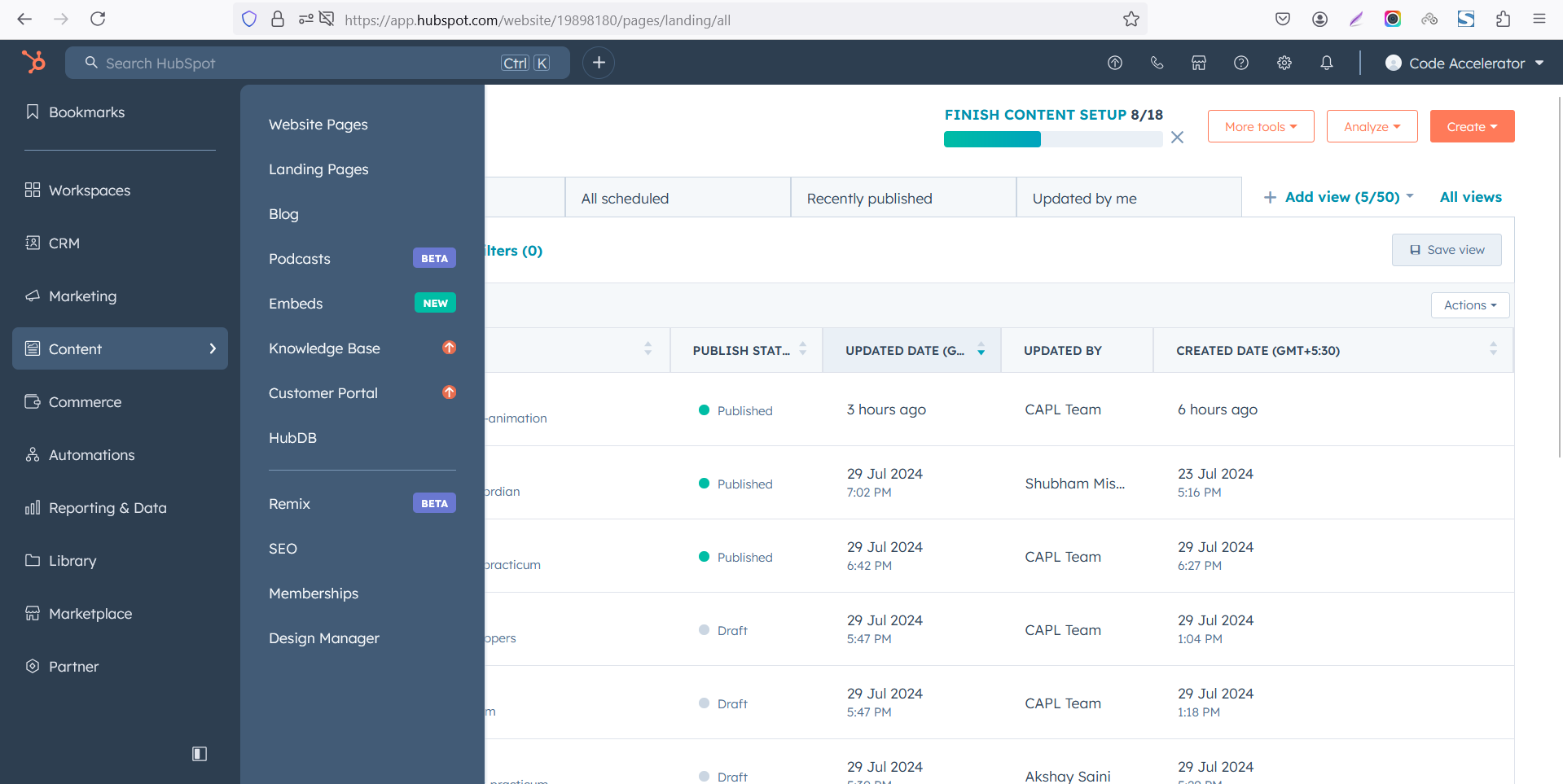
Select the page where you want to apply the module.
-Feb-13-2026-06-36-17-9723-PM.png)
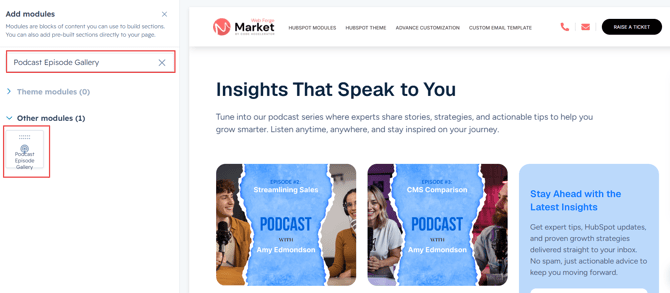
Search for "Podcast Episode Gallery" and drag and drop the module into the desired location on your page.
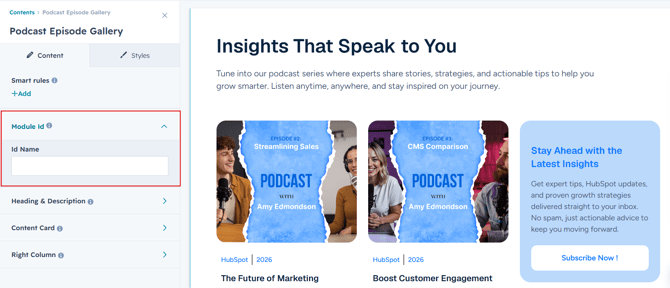
Module Defaults Options:
Layout ID :
Easily enhance navigation by adding an ID to the target section and using the same ID in an anchor link. This enables a smooth scrolling effect when users click a Call-to-Action (CTA) button, improving the overall user experience.
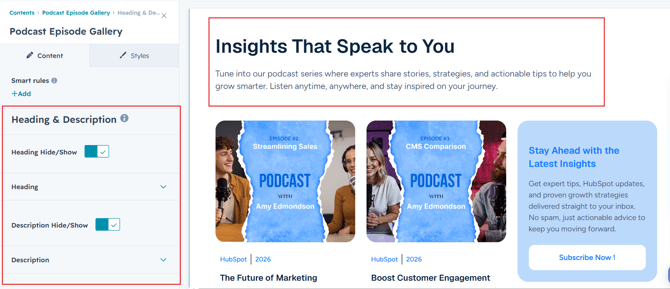
Heading & Description :
You can customize the content displayed in your Timeline Heading Sections. Easily modify and refresh the "Heading" and "Description" as desired, and even choose to hide the section if you wish.
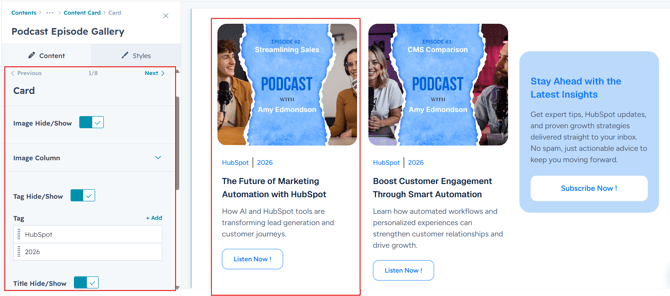
Column Content :
Easily create and manage column entries with complete control over the content displayed in each milestone. Users can customize the image, title, description and popup button to build engaging and informative timelines that align with their brand and storytelling goals.
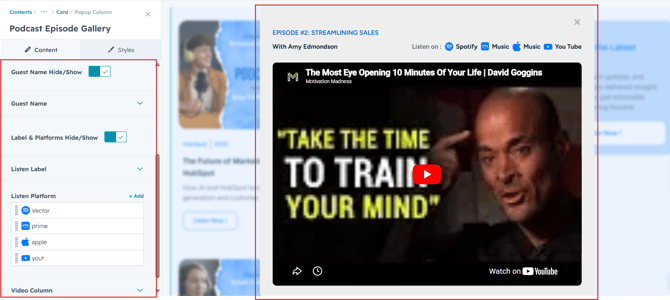
Popup Content :
Easily create and manage podcast episode popups with complete control over the content displayed in each entry. Customize episode titles, listening platform links, and video content to deliver an engaging and seamless podcast experience that aligns with your brand.
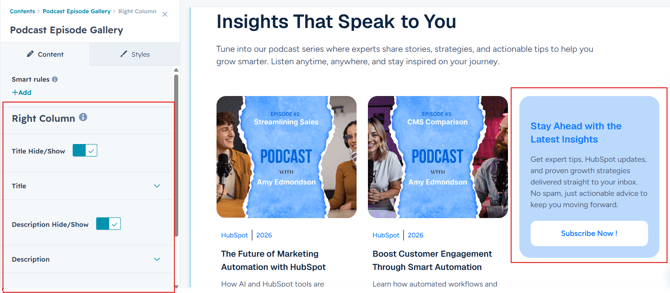
Right Content :
Easily create and manage the right content section with complete control over the information displayed. Customize episode titles, descriptions, and CTA content to create an engaging podcast experience that aligns perfectly with your brand and encourages audience interaction.
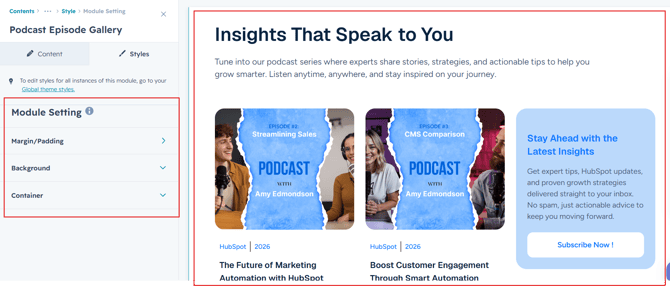
Module Style Options:
Module Setting :
Adjust the margins, padding, background colors, and container width to create the desired look and feel for your module. This flexibility allows you to fine-tune the layout and aesthetics, ensuring that your design is both visually appealing and functional.
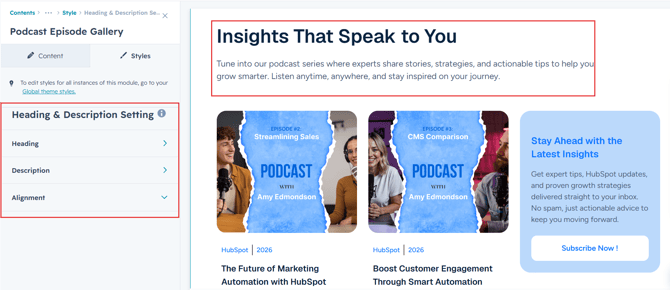
Heading & Description Setting :
Customize the appearance of your section heading and description to match your brand identity. Adjust typography settings including font size, font weight, line height, text color, alignment, and spacing for both desktop and mobile devices, ensuring a polished and consistent presentation across all screen sizes.
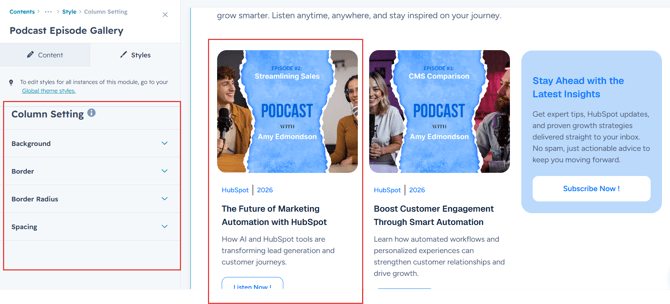
Column Setting :
Customize the appearance of your podcast content cards to match your brand identity. Adjust background colors, borders, corner radius, and spacing for both desktop and mobile devices, ensuring a polished, visually appealing, and consistent presentation across all screen sizes.
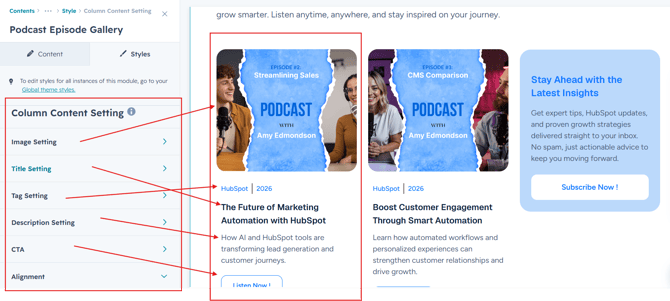
Column Content Setting :
Customize the appearance of your card content with complete control over its visual presentation. Adjust typography settings for the title, description, and popup button, including font size, font weight, line height, text color, spacing, and alignment. Create engaging and visually consistent podcast cards that align perfectly with your brand across desktop and mobile devices.
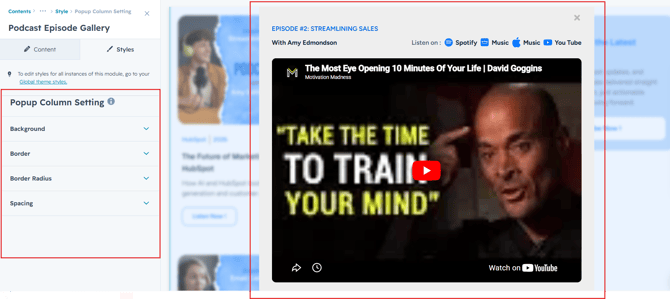
Popup Column Setting :
Customize the appearance of your podcast popup to match your brand identity. Adjust background colors, borders, corner radius, and spacing for both desktop and mobile devices, ensuring a polished, visually appealing, and consistent presentation across all screen sizes.
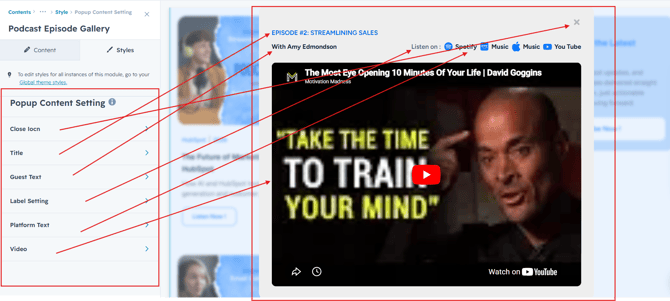
Popup Content Setting :
Customize the appearance of your popup content with complete control over its visual presentation. Adjust typography settings for the title, label, and video, including font size, font weight, line height, text color, spacing, and alignment. Create engaging and visually consistent podcast cards that align perfectly with your brand across desktop and mobile devices.
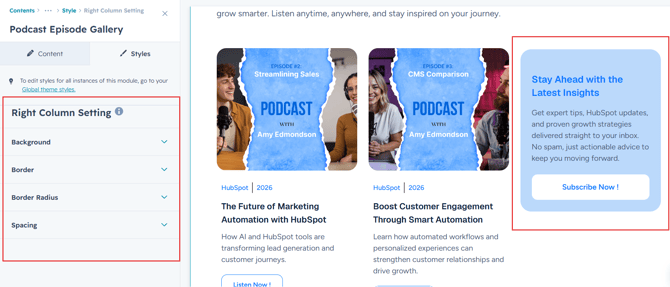
Right Column Setting :
Customize the appearance of your right column to match your brand identity. Adjust background colors, borders, corner radius, and spacing for both desktop and mobile devices, ensuring a polished, visually appealing, and consistent presentation across all screen sizes.
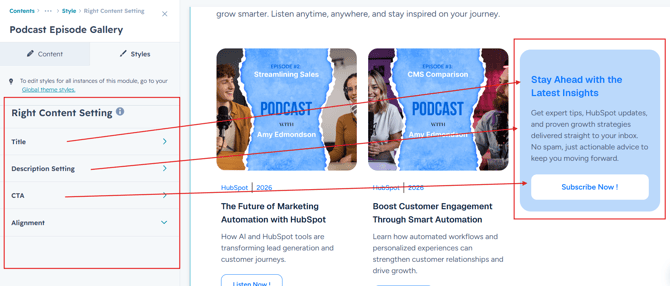
Right Content Setting :
Customize the appearance of your right content with complete control over its visual presentation. Adjust typography settings for the title, description, and CTA, including font size, font weight, line height, text color, spacing, and alignment. Create engaging and visually consistent podcast cards that align perfectly with your brand across desktop and mobile devices.
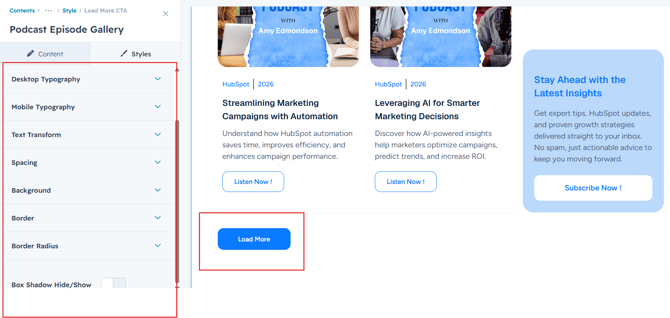
Load More Button Setting :
Customize the appearance of the Load More button to match your website's design and branding. Adjust typography, text color, background color, border style, corner radius, spacing, padding, and hover effects for both desktop and mobile devices, ensuring a seamless and engaging user experience across all screen sizes.
We hope you enjoy using our podcast episode gallery module to create a seamless experience for both your users and your marketing team. At Code Accelerator, we're committed to ensuring your HubSpot experience is exceptional. If you need a custom HubSpot module or require a tailored HubSpot CMS or CRM setup, please don’t hesitate to Contact Us.