
The Multistep Hero Banner Module helps you create an interactive, step-by-step experience that guides visitors through questions, choices, and personalized results. Highlight your key questions, selectable options, engaging content, and call-to-action buttons with a smooth and intuitive navigation flow.
Fully responsive and highly customizable, this module is designed to simplify user journeys, improve visitor engagement, and deliver a seamless guided experience across desktop, tablet, and mobile devices.
Key Features Multistep Hero Banner Module :
-
Modern Hero Banner Design : Create a professional first impression with a clean, eye-catching layout.
- Interactive two-step navigation : Navigate visitors through two interactive steps with a smooth, intuitive flow that makes discovering relevant solutions simple and engaging.
-
Responsive Design: Adjusts seamlessly across devices, from desktops to mobile screens.
-
Customizable Styles: Fully customizable with CSS variables for themes, fonts, colors, and animations.
-
Performance Optimization: Lightweight animations optimized to ensure smooth interactions without lag.
- Customizable questions and answer options : Easily customize questions and answer options to create engaging, relevant, and personalized user journeys that match your website goals.
How to Set Up the Multistep Hero Banner Module in HubSpot :
In the main dashboard, navigate to the ‘Content’ tab and select either ‘Website’ or ‘Landing Pages’, depending on where you want to add the section. This allows you to choose the appropriate location for managing or updating your content.
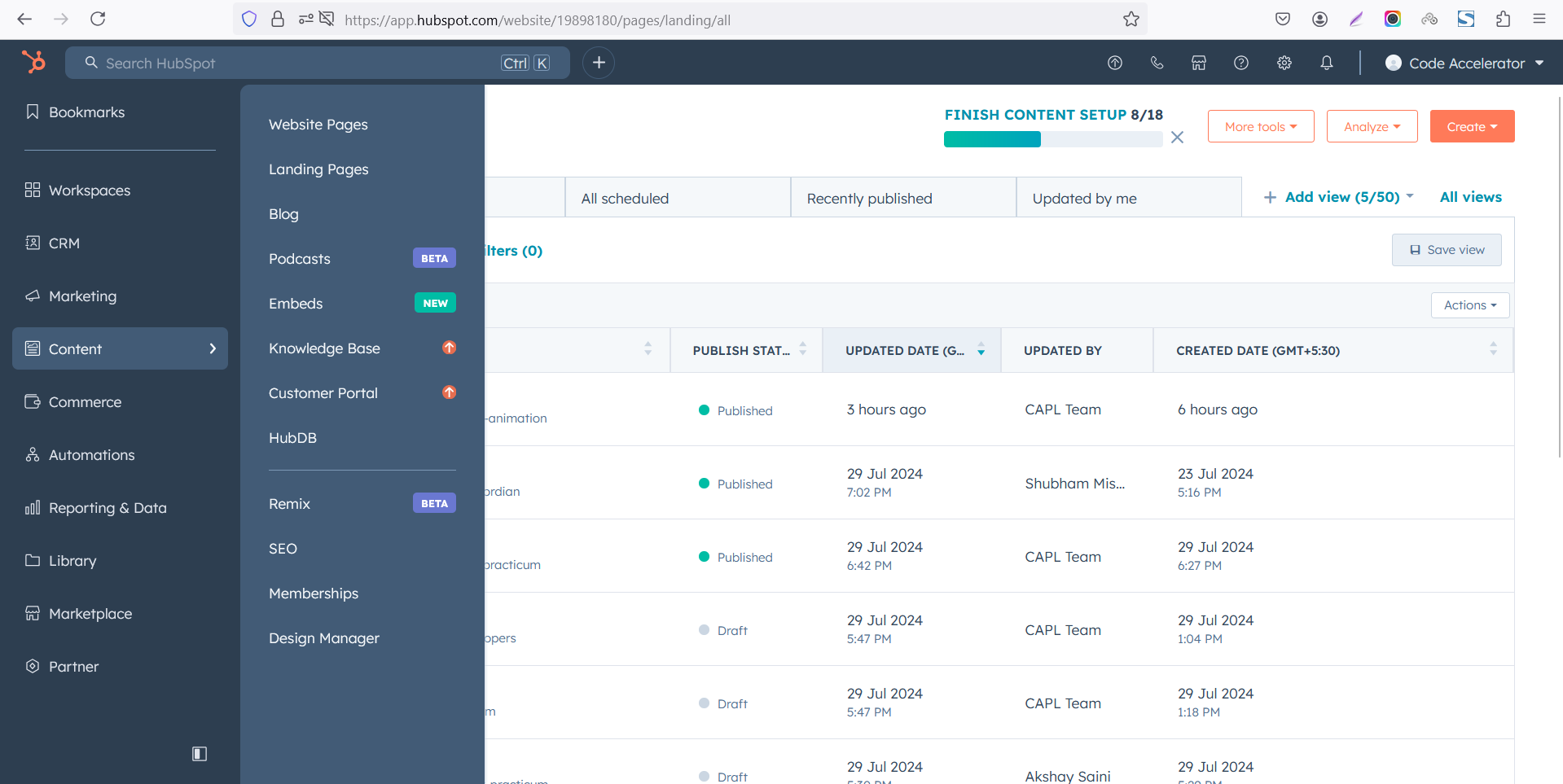
Select the page where you want to apply the module.

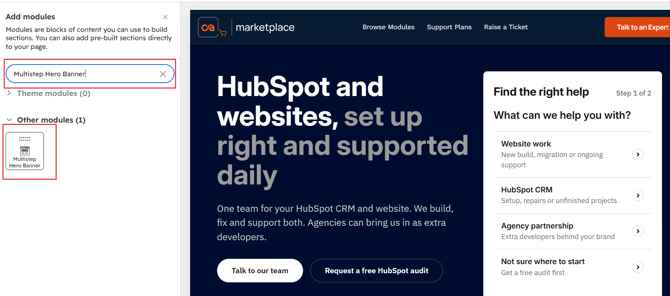
Search for "Multistep Hero Banner" and drag and drop the module into the desired location on your page.
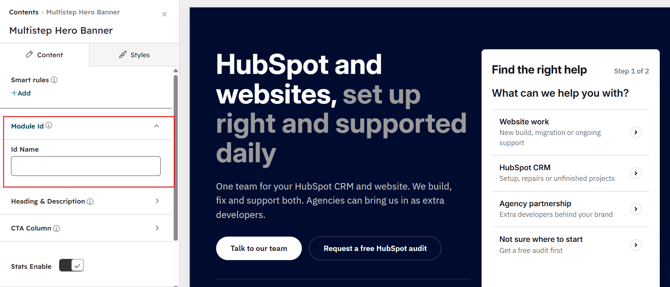
Module Defaults Options:
Layout ID :
To enable smooth scrolling for a CTA, assign an ID to the target element, reference that ID in the anchor link's href, and clicking the CTA will smoothly scroll the page to the section.
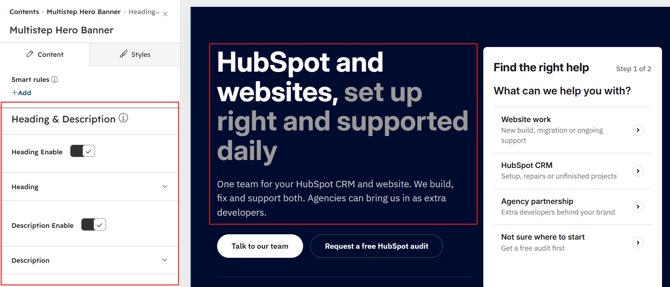
Heading & Description:
Easily customize the content in your module by modifying the "Heading" and "Description. You can also choose to hide the section if desired, giving you complete control over the presentation and functionality of your content.
Options :
- Heading & Description Show Hide Toggle
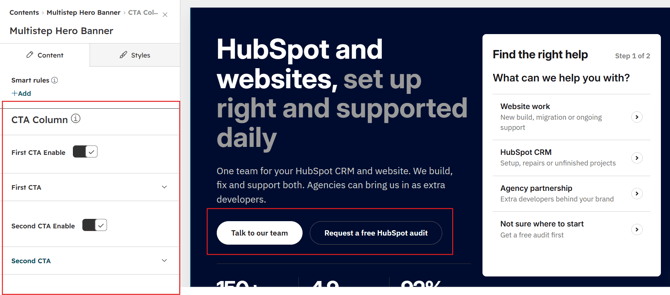
CTA's :
Easily manage CTA button text and destination links to guide visitors toward relevant pages, services, or actions.
- CTA Show Hide Toggle
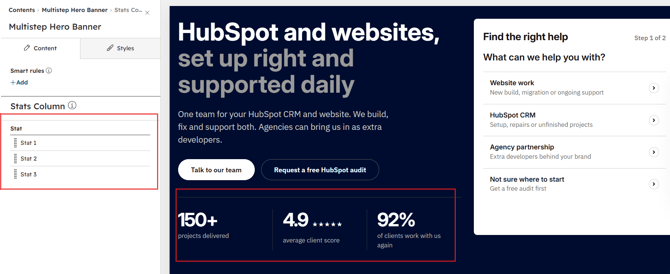
Stats Content :
Easily manage statistical content with custom numbers and supporting text. Highlight key achievements, business milestones, and important metrics. Present valuable information in a clear and engaging way.
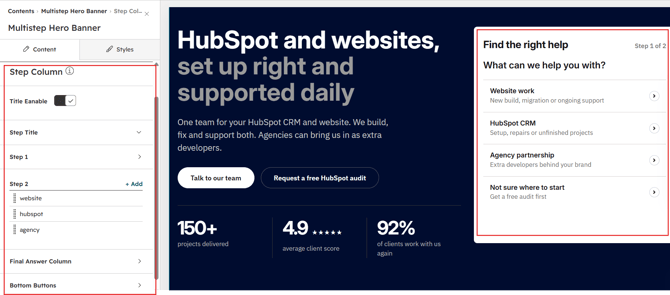
Step Content:
Customize your Step 1 column content by adding unique call keys, titles, descriptions, and other relevant information for each item. Use lowercase letters, numbers, and dashes without spaces for call keys (example: website). Make sure every Step 1 item has a unique key and that the same key is used in its corresponding Step 2 questions to display the correct content. If you want a Step 1 choice to go directly to the final answer, enable Final Answer Recap for that item. In this case, you do not need to create a corresponding item in Step 2, as visitors will be taken directly to the final answer.
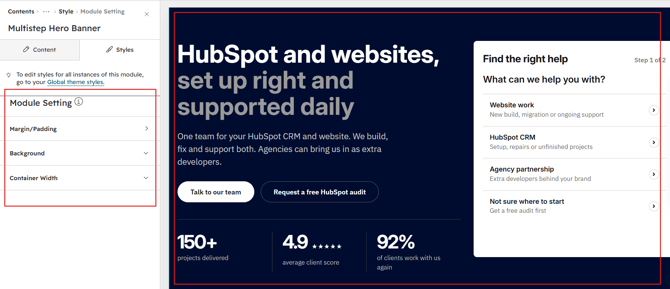
Module Style Options:
Module Setting :
Adjust the margins, padding, background colors, and container width to customize the module's appearance. This flexibility lets you refine the layout and aesthetics, creating a visually appealing, functional, and user-friendly design.
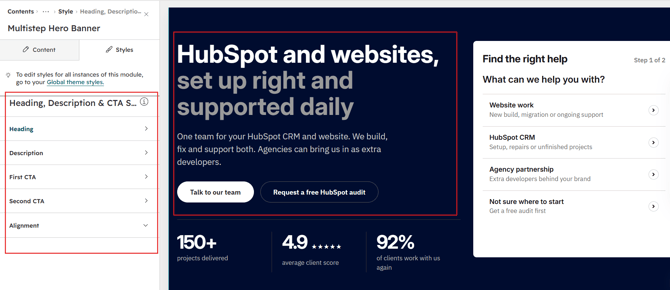
Heading, Description & CTA Setting :
Customize the typography, font size, colors, spacing, and alignment for headings, descriptions, and CTA buttons. Fine-tune the appearance of each element to match your website's branding and maintain a consistent design across the module.
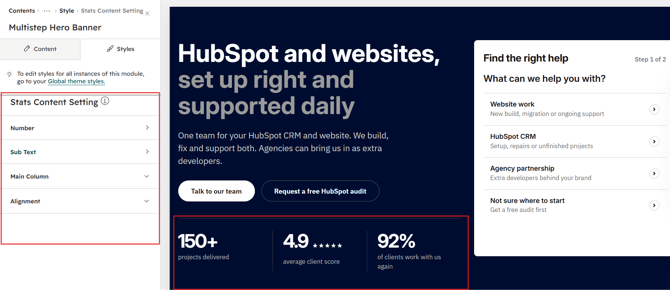
Stats Content Setting :
Customize the typography, font size, colors, spacing, and alignment for statistics numbers and supporting text. Fine-tune each element to create a clear, consistent, and visually appealing presentation.
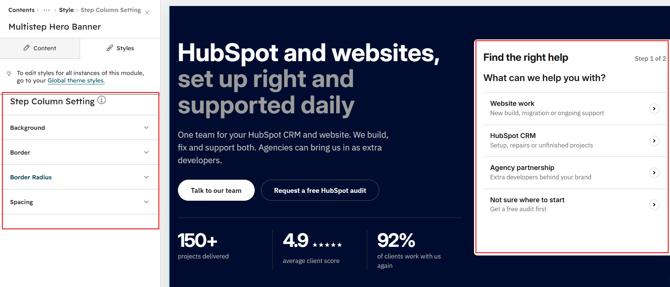
Step Column Setting :
Customize the step column appearance with background colors, border settings, corner radius, and spacing to create a clean and consistent layout.
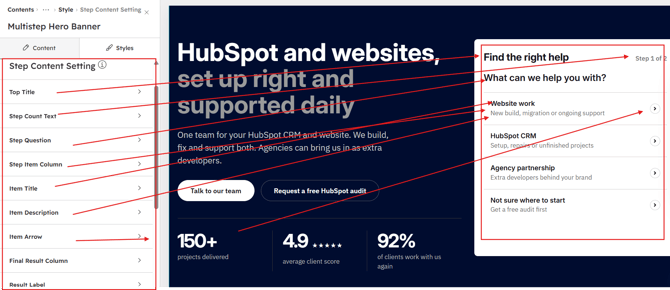
Step Content Setting :
Customize the typography, font sizes, text colors, and alignment for Step 1, Step 2, and Final Answer column content.
Adjust headings, descriptions, item titles, result labels, and supporting text to match your website's branding. Fine-tune each content element to create a consistent, engaging, and visually appealing experience across all steps.
We hope you enjoy using Multistep Hero Banner module to create a seamless experience for both your users and your marketing team. At Code Accelerator, we're committed to ensuring your HubSpot experience is exceptional. If you need a custom HubSpot module or require a tailored HubSpot CMS or CRM setup, please don’t hesitate to Contact Us.